 MainVac
Keep going.
It’s in your hands.
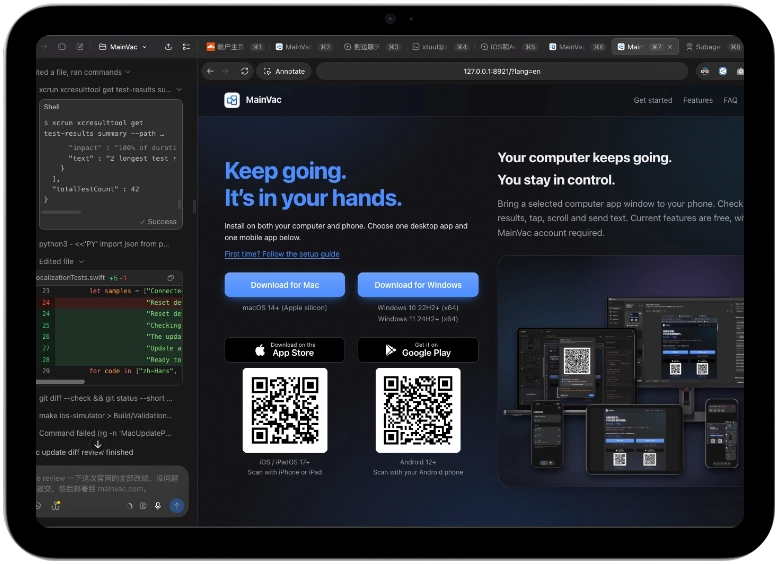
Install on both your computer and phone. Choose one desktop app and one mobile app below.
First time? Follow the setup guide
macOS 14+ (Apple silicon)
Windows 10 22H2+ (x64)
Windows 11 24H2+ (x64)
Scan with your Android phone
Your computer keeps going.
You stay in control.
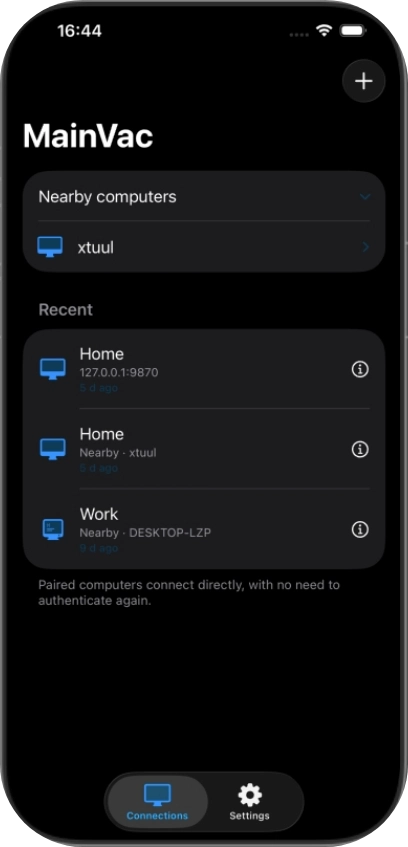
Bring a selected computer app window to your phone. Check results, tap, scroll and send text. Current features are free, with no MainVac account required.



What MainVac helps you do
Check your latest build
Leave a task running on your computer, then use your phone to inspect and interact with the resulting page or app. Use your existing tools for AI conversations and instructions.
Check a running task
Check progress or results in an app window while away from your desk. Your computer needs to stay on, connected and running MainVac.
Finish a quick operation
Open a page, press a button or send a line of text from your phone. Share one selected window at a time and switch when needed.
Built for the small screen
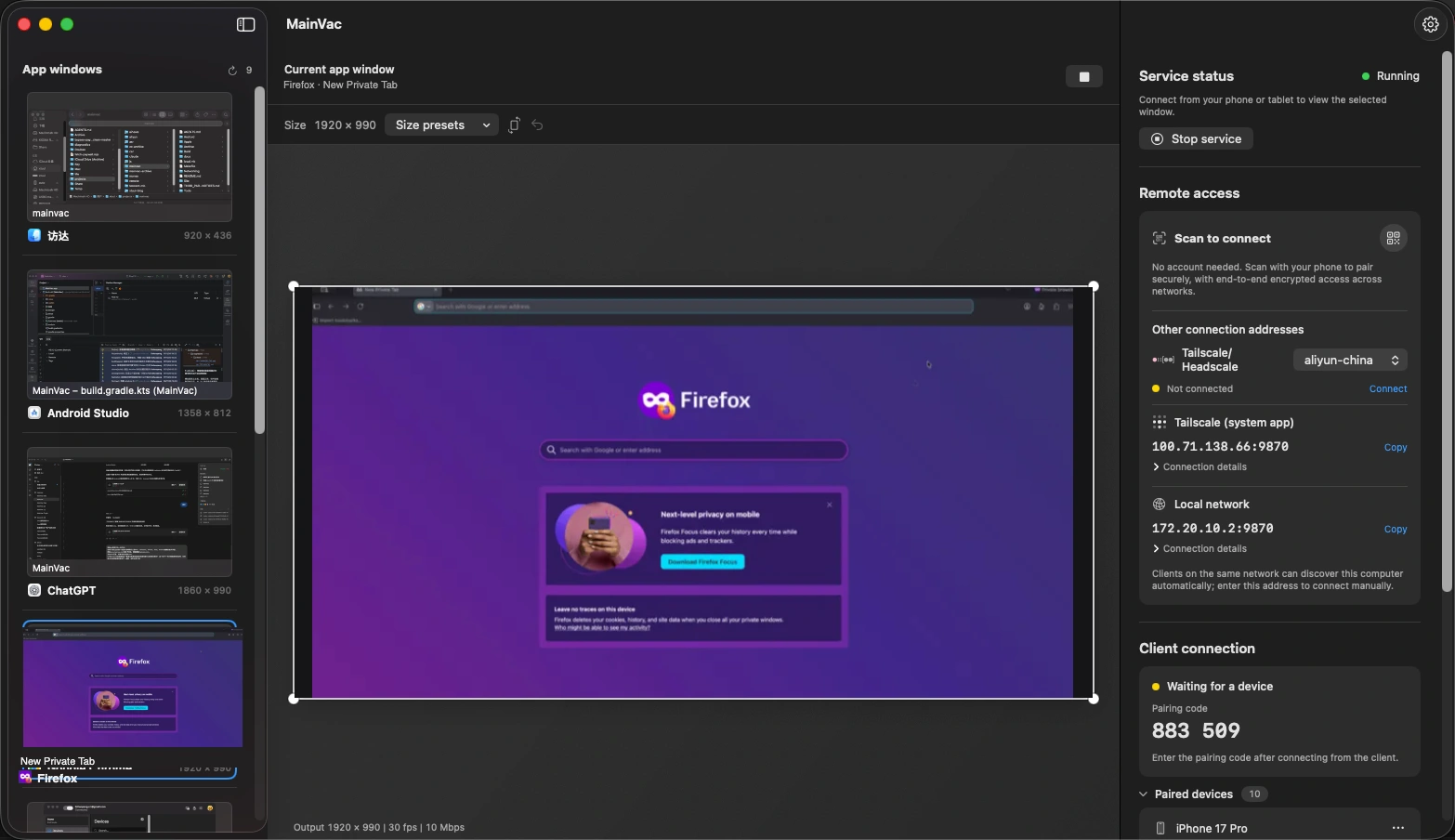
Choose the window to control
Choose an app window on your computer. Drag the crop handles to share the part you want to see on your phone.
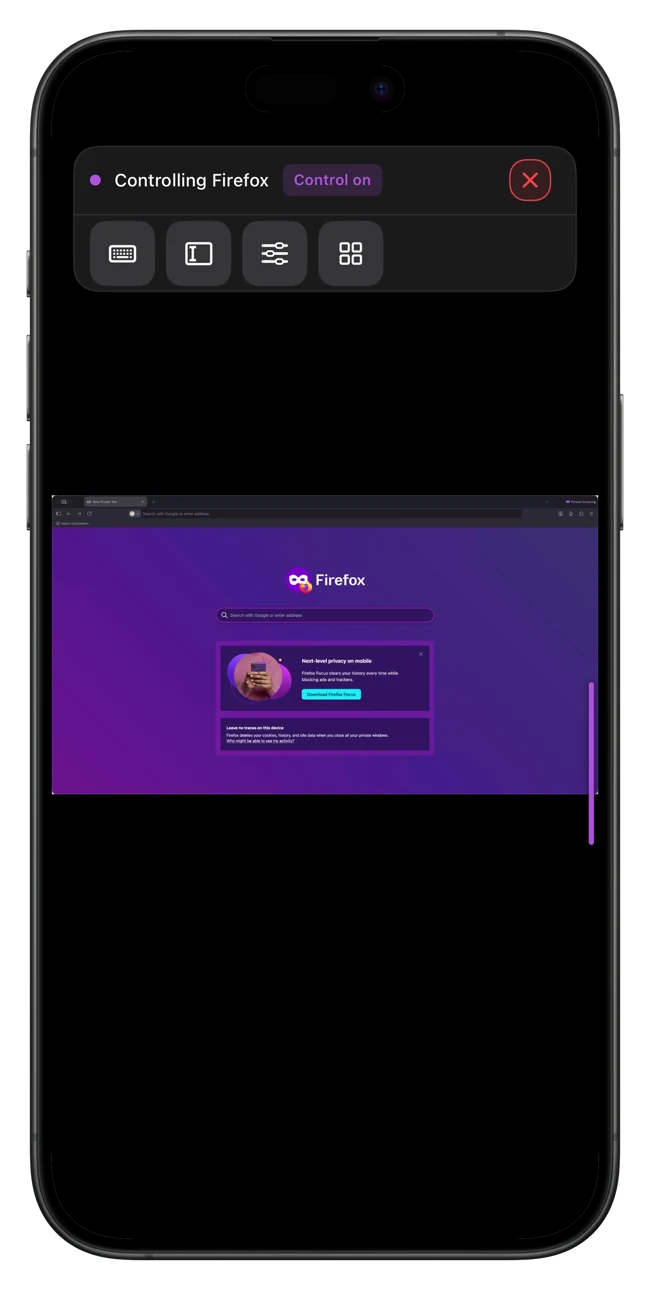
Touch controls for your phone
Use touch gestures to interact with the remote window, and zoom in when the details are small.
- Tap to click, long-press to right-click, swipe to scroll
- Pinch to zoom, drag with two fingers to look around
- Single-finger interaction with supported iOS Simulator and Android Emulator windows
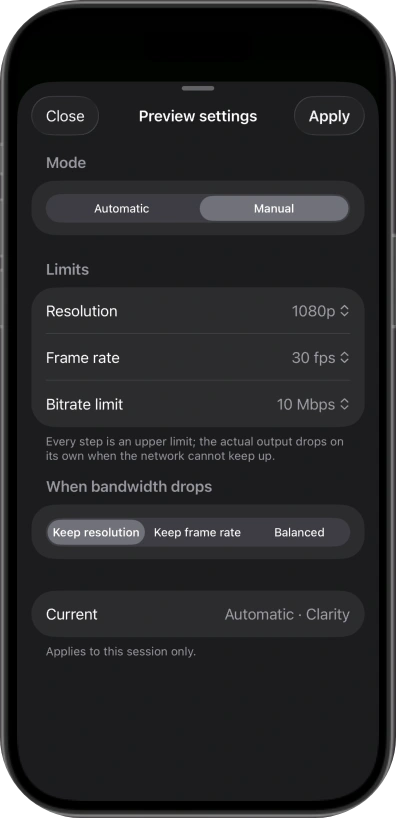
Preview settings
Use automatic settings or set limits for resolution, frame rate and bitrate. When bandwidth drops, choose whether to preserve detail or motion. Your settings apply to this session.
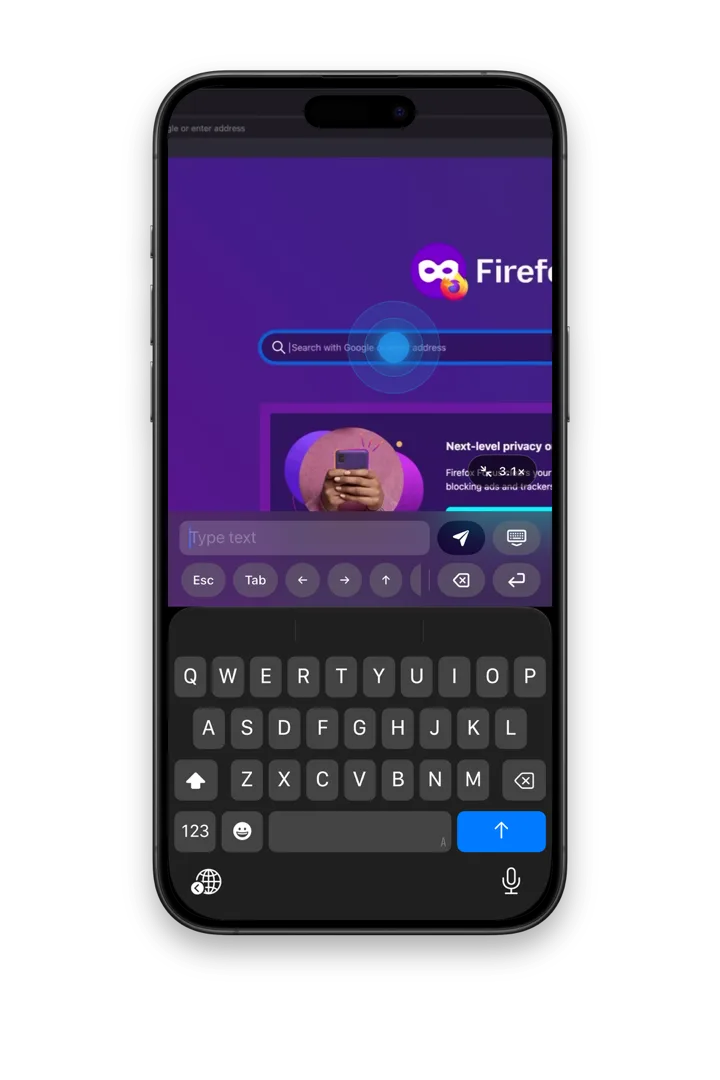
Type and edit text
Select a text field on your computer, compose text in MainVac’s input bar on your phone, then send it. Use the shortcut buttons configured on the host for additional actions.
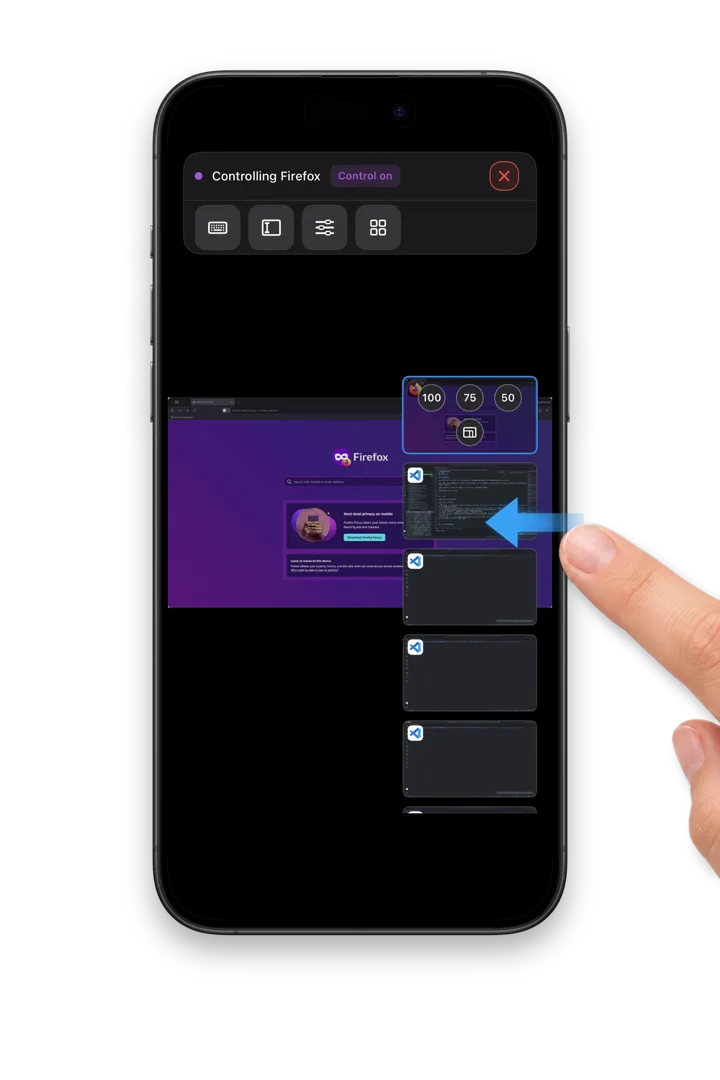
Switch between windows
Swipe in from the right edge and tap a thumbnail to switch to another open window.
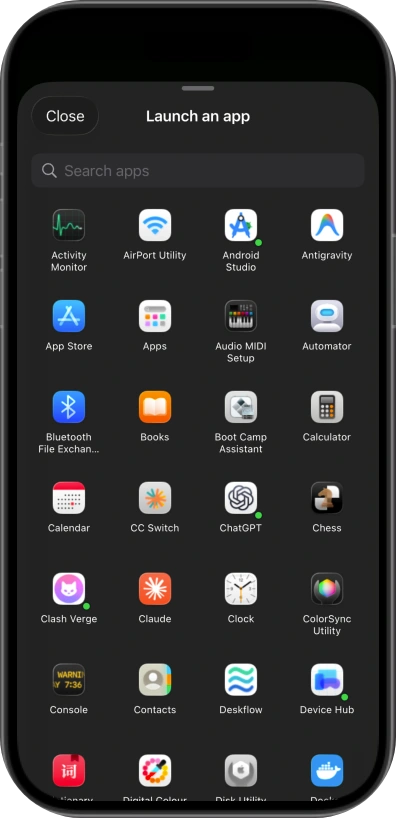
Open an app on your computer
When your computer allows remote app launch, search the app list on your phone and tap an icon to open it.
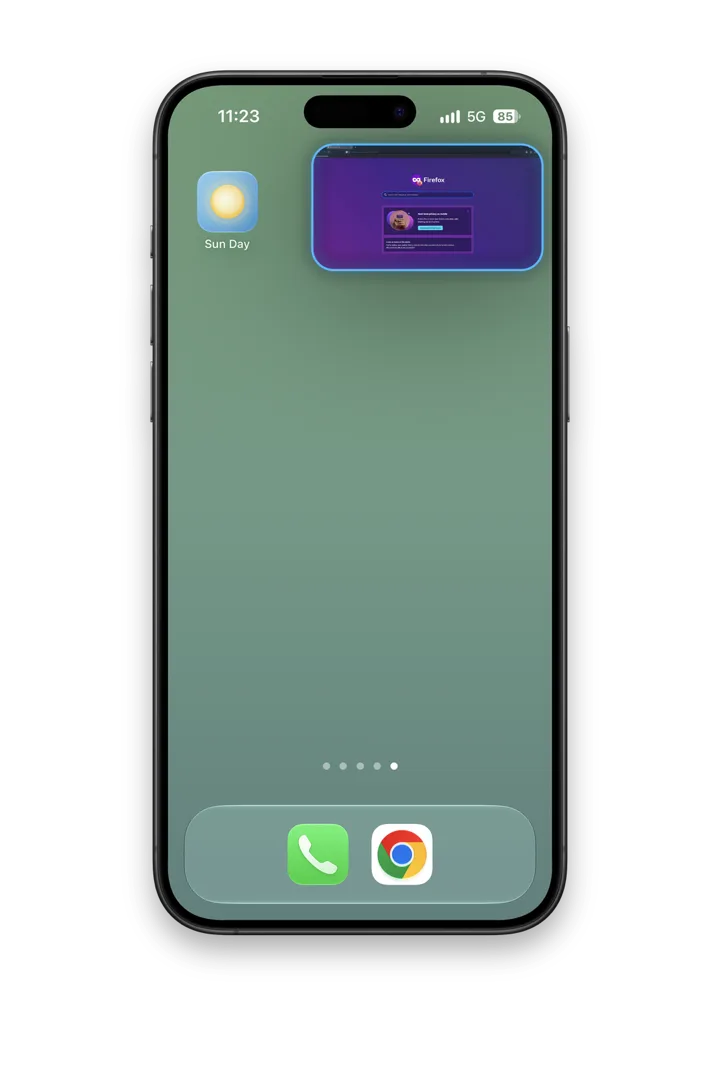
Keep it in sight
With Picture in Picture enabled and allowed by your system, keep a preview visible while using another app. Return to MainVac to continue operating the window.
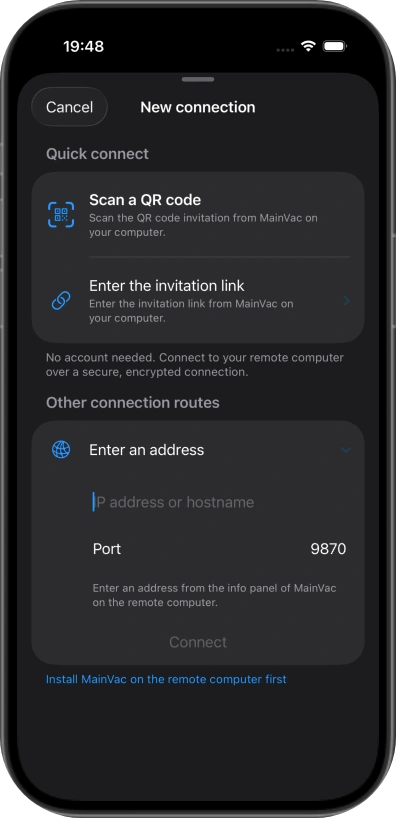
Connect your way
Start with a scan, use your local network, or connect through your existing Tailscale network.
- Quick Connect — pair by scanning the computer’s invitation; across networks, encrypted traffic may use a public relay
- Local network — nearby computers show up automatically, or enter an address
- Tailscale — use the built-in option on your computer and the Tailscale app on your phone; sign in and join a network that lets both devices reach each other
Private by design
End-to-end encrypted
Video and input are end-to-end encrypted between your devices. Third-party relays may carry encrypted traffic when a direct connection is unavailable.
You set the permissions
Pair only devices you trust. Viewing a window does not automatically grant control; you decide when to enable it. Sharing one window is not an application sandbox.
Screen privacy mode
A screen curtain helps hide the local display while you use the remote window. It is separate from your operating system’s lock screen.
Questions
How do I get started?
Install MainVac on your computer and phone, start sharing on the computer, then scan its pairing invitation. Follow the step-by-step guide for permissions, control and reconnecting.
Do I need an account?
MainVac needs no account. Quick Connect and LAN pairing work without one; using Tailscale requires a third-party network account.
How do I add or replace a computer?
Install MainVac on the new computer, start sharing and pair from your phone. There is no computer limit; each computer supports one active session. You can remove old computer records from your phone.
Are connections secure?
Video and input are end-to-end encrypted between your devices. When a direct connection is unavailable, encrypted traffic may use third-party relays; speed and availability depend on the network and relay. You control pairing and remote input. See the privacy policy.
What do I need to connect across networks?
Scan a Quick Connect invitation, which may use a public relay across networks. You can also use Tailscale or a self-hosted Headscale network. LAN connections need no public service.